Chapter 32: Redrawing Some Content
In the previous chapter we added a Results window to our application, and wrote the code needed for it to be redrawn on Redraw_Window_Request events. What we didn’t do, however, was arrange for it to display anything useful. To do that, we will need to store some real data within our application and plot it to the screen in the correct place when requested.
Storing some data
Before we can redraw any data in our window, we will need to find a way to store that data. If our application were a real one with a useful purpose, the format of the data and the way that we hold it in memory would very likely be defined by the task that it was carrying out. Since we don’t have the luxury of a purpose, we will have to figure something out for ourselves.
One important thing to consider when devising a data structure is ease (and speed) of access. If we were writing a text editor and we needed to redraw the tenth line of our window’s contents, for example, how easy would it be to find that data in memory? If we were developing a vector graphics package like Draw, how easy would it be to find the area of a redraw rectangle within a larger image?
It’s worth bearing this kind of thing in mind when devising a data structure, because it can both save redraw time and make writing the redraw routines much easier. All of the objects in a drawfile contain a rectangular bounding box in a standard format, for example, which makes it much quicker for the application to filter down the items which appear within a given area and discard those which don’t affect the current operation. A text editor might maintain a list of pointers to the starts of the lines in the current window for a similar reason.
In our case, we have already decided that we will be redrawing our table by line, so a simple array would work well: if we know what line of the window we are redrawing, we can use that to index into an array of data. To avoid duplicating data (and having to then keep it all in sync), it is generally best to read the information from the application’s ‘live’ data and do conversions into human-readable format as part of the redraw process: an accounts package might hold references to accounts within its data and look up the account names within the redraw loop, for example. However, if we look at c.calc, we find that we can only access textual representations of the data in the main window.
To that end, we might as well store results data as a collection of text strings. This has the advantage of being simple, so that we can focus on the redrawing and not the data wrangling. A new results_data structure can store complete sets of results from the main window, a global results_rows[] array will hold one of these for each line, and results_row_count will track how many are in use. This can all be seen in Listing 32.1.
/* The size of a results text field. */

#define RESULTS_VALUE_LEN 16

/* Line Data Structure. */

struct results_data {
        char shape[RESULTS_VALUE_LEN];
        char sides[RESULTS_VALUE_LEN];
        char internal_angle[RESULTS_VALUE_LEN];
        char side_length[RESULTS_VALUE_LEN];
        char perimeter[RESULTS_VALUE_LEN];
        char area[RESULTS_VALUE_LEN];
};

/* Global Variables. */

static size_t results_row_count = 0;
static struct results_data results_rows[RESULTS_MAX_ROWS];
Listing 32.1: The data structures to hold our results
We will need a way to add results to the collection, and so we will create a new results_store_current_data() function as seen in Listing 32.2. This takes the name of the shape in the *shape parameter, and then reads all of the rest of the details from the calculation code. There is a check to make sure that we don’s add lines past the end of the array, and we use SFLib’s string_copy() to make sure that our copied strings get terminated safely if any of the buffers fill.
/* Store the current calculation data. */

void results_store_current_data(char *shape)
{
        if (results_row_count >= RESULTS_MAX_ROWS)
                return;

        string_copy(results_rows[results_row_count].shape, shape, RESULTS_VALUE_LEN);
        string_copy(results_rows[results_row_count].sides, calc_get_sides(), RESULTS_VALUE_LEN);
        string_copy(results_rows[results_row_count].internal_angle, calc_get_internal_angle(), RESULTS_VALUE_LEN);
        string_copy(results_rows[results_row_count].side_length, calc_get_length(), RESULTS_VALUE_LEN);
        string_copy(results_rows[results_row_count].perimeter, calc_get_perimeter(), RESULTS_VALUE_LEN);
        string_copy(results_rows[results_row_count].area, calc_get_area(), RESULTS_VALUE_LEN);

        results_row_count++;
}
Listing 32.2: The interface to add new results to the collection
We need a way to clear the results if the user chooses that option from the Results window menu, so we also add a results_clear_data() function to do this as seen in Listing 32.3. All that it needs to do is to reset the results_row_count variable to zero. Unlike its counterpart, this function won’t need to be called from outside of the c.results module.
/* Clear all of the stored data. */

static void results_clear_data(void)
{
        results_row_count = 0;
}
Listing 32.3: The internal interface to clear the results
We can now update the results_menu_selection() handler function to call results_clear_data() when the corresponding menu item is selected.
static void results_menu_selection(wimp_w window, wimp_menu *menu, wimp_selection *selection)
{
        if (menu != results_menu)
                return;

        switch (selection->items[0]) {
        case RESULTS_MENU_CLEAR:
                results_clear_data();
                break;
        }
}
To facilitate the redraw itself, we will need to make some changes to the redraw code. First, results_plot_icon() will need to be able to take a pointer to the string that the icon should contain when it is plotted. Wimp_PlotIcon deals with icon definition blocks and not real icons, so we can simply update the pointer to the indirected text before calling the SWI. We check that the wimp_ICON_TEXT and wimp_ICON_INDIRECTED flags are set before doing this, just in case the templates have been altered – this avoids any nasty surprises should the Wimp be expecting something other than a pointer to a text buffer.
static void results_plot_icon(wimp_i icon, int y0, int y1, char *text)
{
        results_icons[icon].extent.y0 = y0;
        results_icons[icon].extent.y1 = y1;

        if (results_icons[icon].flags & (wimp_ICON_TEXT | wimp_ICON_INDIRECTED))
                results_icons[icon].data.indirected_text.text = text;

        wimp_plot_icon(results_icons + icon);
}
Finally, for the code in c.results, we update the redraw loop as seen in Listing 32.4. To avoid running past the end of the valid results, we add a second bounds check for bottom against the value of results_row_count; the test against RESULTS_MAX_ROWS remains, in case results_row_count contains a nonsensical value. Then, for each of the calls to results_plot_icon(), we find the appropriate string pointer in our array of data structures and pass it in.
static void results_redraw(wimp_draw *redraw)
{
        osbool more;
        int oy, top, bottom, icon_y0, icon_y1;

        /* Use the shape column to size the row heights. */

        int row_height = results_icons[RESULTS_ICON_TITLE_SHAPE].extent.y1 -
                        results_icons[RESULTS_ICON_TITLE_SHAPE].extent.y0;

        /* Redraw the window. */

        more = wimp_redraw_window(redraw);

        while (more) {
                oy = redraw->box.y1 - redraw->yscroll;

                top = (oy - redraw->clip.y1) / row_height;
                if (top < 1)
                        top = 1;

                bottom = ((oy - redraw->clip.y0) - 1) / row_height;
                if (bottom > RESULTS_MAX_ROWS)
                        bottom = RESULTS_MAX_ROWS;

                if (bottom > results_row_count)
                        bottom = results_row_count;

                for (int y = top; y <= bottom; y++) {
                        icon_y1 = -(y * row_height);
                        icon_y0 = icon_y1 - row_height;

                        results_plot_icon(RESULTS_ICON_ROW_SHAPE, icon_y0, icon_y1, results_rows[y - 1].shape);
                        results_plot_icon(RESULTS_ICON_ROW_SIDES, icon_y0, icon_y1, results_rows[y - 1].sides);
                        results_plot_icon(RESULTS_ICON_ROW_INTERNAL_ANGLES, icon_y0, icon_y1, results_rows[y - 1].internal_angle);
                        results_plot_icon(RESULTS_ICON_ROW_SIDE_LENGTH, icon_y0, icon_y1, results_rows[y - 1].side_length);
                        results_plot_icon(RESULTS_ICON_ROW_PERIMETER, icon_y0, icon_y1, results_rows[y - 1].perimeter);
                        results_plot_icon(RESULTS_ICON_ROW_AREA, icon_y0, icon_y1, results_rows[y - 1].area);
                }

                more = wimp_get_rectangle(redraw);
        }
}
Listing 32.4: Redrawing the stored data
Over in c.win, we need to add a Store result menu item to the window’s main menu. This feels as if it would be most sensible at the top of the menu, so we start by adding in a new constant for the entry and shuffling round the extsing indexes for the decimal place selection.
#define WIN_MENU_STORE_RESULT 0
#define WIN_MENU_DECIMAL1 1
#define WIN_MENU_DECIMAL2 2
#define WIN_MENU_DECIMAL3 3
In win_initialise() we add an extra entry to the call to menu_create(), then create it with a call to menu_entry(). A dotted line is added after the entry, using a call to menu_separator().
/* Window Menu. */

win_menu = menu_create("MainMenu", 4);
if (win_menu == NULL) {
        error_msgs_report_error("BadMainMenu");
        return;
}

menu_entry(win_menu, WIN_MENU_STORE_RESULT, "MainMenu0", NULL);
menu_separator(win_menu, WIN_MENU_STORE_RESULT);
menu_entry(win_menu, WIN_MENU_DECIMAL1, "MainMenu1", NULL);
menu_entry(win_menu, WIN_MENU_DECIMAL2, "MainMenu2", NULL);
menu_entry(win_menu, WIN_MENU_DECIMAL3, "MainMenu3", NULL);
As the change to the order of the menu entries messed up our sequential message tokens, we make the appropriate changes to the Messages file as well.
# Main menu

MainMenu0:Store result
MainMenu1:1 Decimal place
MainMenu2:2 Decimal places
MainMenu3:3 Decimal places
Finally, in the win_menu_selection() function, we add an entry in the switch () statement to handle the new menu entry. This uses SFLib’s icons_get_indirected_text_addr() to find a pointer to the string representing the name of the shape, so that this can be passed to the new results_store_current_data() function.
case WIN_MENU_STORE_RESULT:
        results_store_current_data(icons_get_indirected_text_addr(win_handle, WIN_ICON_SHAPE_FIELD));
        break;
With all of these changes in place, we should find that we can finally store results from the main window using the new menu entry in the main window menu, as seen in Figure 32.1. We can also clear the results using the menu in the Results window.
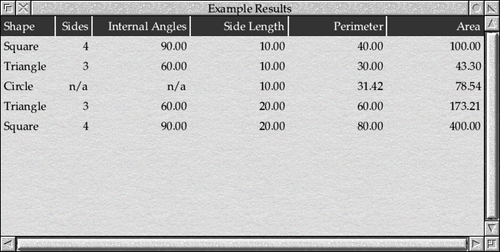
Figure 32.1: The Results window with real data on display
If you’re trying this for yourself, you will probably find that you need to swipe another window over our Results window in order to see any of the changes, but that after this the display works as expected. We will look at why this is happening in the next section, but for now the code so far can be found in Download 32.1.

Requesting a redraw
If you have run the application as it exists in Download 32.1, you should have noticed that the contents of the Results window doesn’t update when results are stored or cleared. Forcing the Wimp to redraw the window contents – which can be done by dragging another window over ours – has the desired effect, but clearly it would be better if our application could ask the Wimp to perform this refresh when the data changes.
The Wimp provides us with the Wimp_ForceRedraw for exactly this kind of situation. As we noted in the previous chapter, applications can’t just plot new data to the screen when it becomes available; instead, they must follow a defined process:
- Add the data into their internal data structure in the appropriate place,
- Work out where in their window that data will appear,
- Ask the Wimp to schedule a redraw of that part of the window, and then
- Wait for a redraw request to arrive through Redraw_Window_Request in the usual way.
There is a way to conflate steps 3 and 4 into one immediate update using the Wimp_UpdateWindow SWI, but this adds some complexity which isn’t necessary for a lot of applications and so for now we’ll stick with the easy option. If you find yourself writing a text editor, then it may be something to keep in mind. Also remember that if the new data falls in part of the window which isn’t currently visible, the redraw request may not arrive until that changes.
OSLib defines wimp_force_redraw() as follows:
extern void wimp_force_redraw(
        wimp_w w,
        int x0,
        int y0,
        int x1,
        int y1
);
The SWI takes five parameters: a window handle in w and then four coordinates in x0, y0, x1 and y1. As we might expect, these are two sets of coordinate pairs which represent a space within the window’s work area that we wish to be redrawn. They are calculated in the usual way, with x0 and y0 being inclusive of the required area, but x1 and y1 being exclusive.
There are also a couple of magic numbers which can be passed in w to represent different areas of the screen.
#define wimp_BACKGROUND ((wimp_w) 0xFFFFFFFFu)
#define wimp_ICON_BAR   ((wimp_w) 0xFFFFFFFEu)
If we pass wimp_ICON_BAR then we can request a redraw of part of the iconbar so that we can update our application’s icon. If we pass wimp_BACKGROUND then we are asking to redraw an arbitrary part of the screen, and the parameters x0, y0, x1 and y1 represent absolute screen coordinates instead of anything in a window’s work area.
Armed with this new SWI, we can create a new results_force_redraw_lines() function as seen in Listing 32.5, which takes a couple of parameters representing the first and last rows in a range to be redrawn. Both r0 and r1 treat the title row as being row 0, so the first data row will be row 1.
/* Force the redraw of a range of rows. */

static void results_force_redraw_lines(int r0, int r1)
{
        /* Use the shape column to size the row heights. */

        int row_height = results_icons[RESULTS_ICON_TITLE_SHAPE].extent.y1 -
                        results_icons[RESULTS_ICON_TITLE_SHAPE].extent.y0;

        int top = -r0 * row_height;
        int bottom = -(r1 + 1) * row_height;

        /* Get the column bounds from the Shape and Area columns. */

        int left = results_icons[RESULTS_ICON_TITLE_SHAPE].extent.x0;
        int right = results_icons[RESULTS_ICON_TITLE_AREA].extent.x1;

        /* Force the redraw of the chosen lines. */

        wimp_force_redraw(results_handle, left, bottom, right, top);
}
Listing 32.5: Using Wimp_ForceRedraw to refresh the window
There is a lot of similarity with the code that we have in our redraw loop: we calculate row_height from the title row icon templates, and then use this to calculate top and bottom. By adding 1 to r1, we ensure that if we pass the same value in for r0 and r1, then we will end up calculating the vertical offsets of the top and bottom of that single row.
The left and right coordinates are found from the x0 coordinate of the left-most icon in the title row (the Shape title) and the x1 coordinate of the right-most icon (the Area title). Assuming that we have aligned all of the icons correctly in the template, this will encompass the full width to be redrawn – if some of this turns out to be out of sight, then the Wimp won’t bother to include it in the subsequent redraw requests.
With the area calculated, we can call the wimp_force_redraw() SWI to request the update. If you follow the code through, you’ll see that after calling Wimp_ForceRedraw we return back to the poll loop through the event handler and then call Wimp_Poll. Having called Wimp_ForceRedraw, we can rely on the Wimp sending us a Redraw_Window_Request at a suitable point in the future if any of our window actually needs to be redrawn.
With results_force_redraw_lines() defined, all that remains is to make use of it. To redraw lines of data when they are added, we can add the following call to the end of results_store_current_data(), after results_row_count has been incremented. This should force a redraw of the single line which has just been added to the data collection.
results_force_redraw_lines(results_row_count, results_row_count);
To redraw the window when the collected results are cleared, we can add the following line to the start of results_clear_data(), before results_row_count is reset to zero. This uses the ability of results_force_redraw_lines() to take a range of lines, and requests thet redraw of all of the lines which held results in one go.
results_force_redraw_lines(1, results_row_count);
With these changes in place, we should find that the application updates its window when changes are made, which gives a much more intuitive experience for the user! The full code can be found in Download 32.2.
Updating menu states
While we’re thinking about intuitiveness, there is one other small thing... RISC OS convention is that menu items are shaded when they aren’t applicable, but if we store ten results and then try to store another, the Store result menu entry is still available but will be ignored. Since c.win is already registering its win_set_menu() function as an event handler for SFLib’s menu prepare event so that it can set the ticks against the decimal place options, we could also shade Store result if we knew that the Results window was full.
To this end, we can add a public function to c.results in order to make this information available. If results_get_free_space() in Listing 32.6 is called, it will return TRUE if there is space to add another result and FALSE otherwise.
/* Is there space to store another result? */

osbool results_get_free_space(void)
{
        return (results_row_count < RESULTS_MAX_ROWS) ? TRUE : FALSE;
}
Listing 32.6: Share the availability of free results space
We can then update win_set_menu() to read this information and use SFLib’s menus_shade_entry() function to update the menu entry as required – this is a much less contrived example of this function’s use than when we introduced it back in Chapter 24!
static void win_set_menu(wimp_w w, wimp_menu *menu, wimp_pointer *pointer)
{
        if (menu != win_menu)
                return;

        int places = calc_get_places();

        menus_tick_entry(win_menu, WIN_MENU_DECIMAL1, places == 1);
        menus_tick_entry(win_menu, WIN_MENU_DECIMAL2, places == 2);
        menus_tick_entry(win_menu, WIN_MENU_DECIMAL3, places == 3);

        osbool free_space = results_get_free_space();

        menus_shade_entry(win_menu, WIN_MENU_STORE_RESULT, !free_space);
}
To do the same thing for the Clear contents entry in the Results window menu, we can create a new results_set_menu() in c.results as seen in Listing 32.7. This shades the entry if results_row_count is zero, indicating that there are no results to be cleared.
/* Menu Prepare event handler. */

static void results_set_menu(wimp_w w, wimp_menu *menu, wimp_pointer *pointer)
{
        if (menu != results_menu)
                return;

        menus_shade_entry(results_menu, RESULTS_MENU_CLEAR, (results_row_count == 0) ? TRUE : FALSE);
}
Listing 32.7: Preparing the Results window menu
This new function can be registered as a menu prepare event handler from results_initialise().
event_add_window_menu_prepare(results_handle, results_set_menu);
We should now find that the menu entries relating to the results shade out when appropriate, as seen in Figure 32.2. It's a small thing, but it follows the convention and saves the user wondering why a menu entry doesn’t respond.
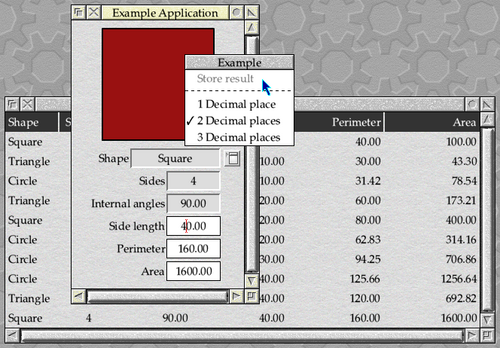
Figure 32.2: Shading the Store menu item when the Results are full
The full application code with these changes included can be found in Download 32.3.
We now have a fully functional Results window (at least in the context of a useless application), but before moving on from window redraw we should note that we aren’t restricted to using Wimp_PlotIcon to draw content in our windows. It’s a very useful call, because it makes it easy to keep a standard ‘look and feel’ to our window contents, but any graphics calls are available to us from within the redraw loop. In the next chapter, we will take a short diversion to look at some of these.